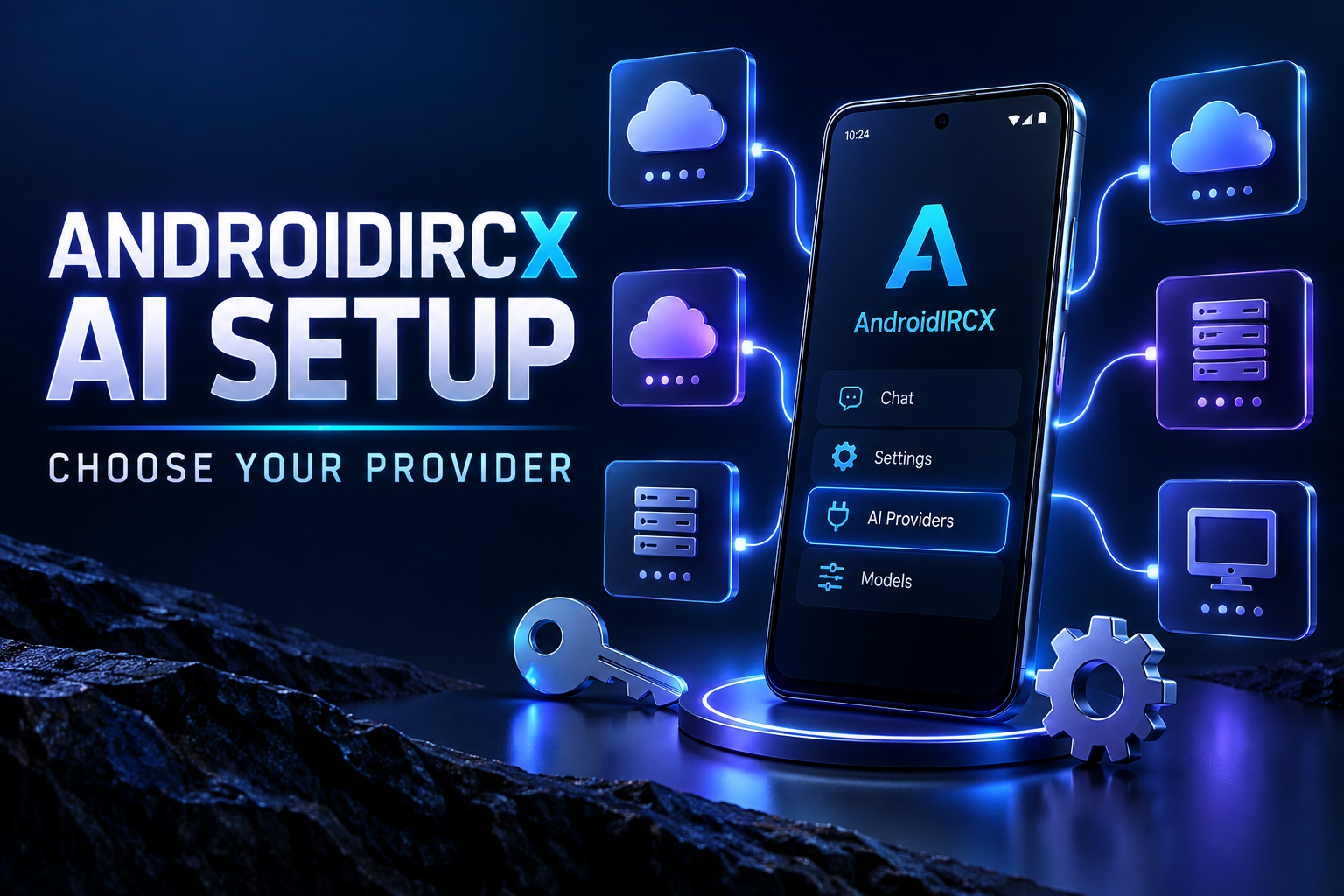
AndroidIRCX AI Provider Setup Guide: Cloud and Local Models

A complete, privacy-aware guide to configuring cloud and local AI providers in AndroidIRCX.
AndroidIRCX AI Provider Setup Guide: Cloud and Local Models
AndroidIRCX does not bundle an AI model, proxy requests through its own server or sell an AI subscription. It uses a bring-your-own-provider design: you choose a cloud API or a model running on your own network, and the app connects directly to it.
Keep the official AndroidIRCX AI documentation nearby. Provider screens and model catalogues can change, while the wiki tracks the released app.
Before you begin
A ChatGPT Plus or Claude Pro/Max subscription is not an API key. Consumer chat subscriptions and developer APIs are separate products. For a cloud setup, create a developer key in the provider's own console. AndroidIRCX supports Anthropic, OpenAI, Gemini, DeepSeek, Groq, OpenRouter and OpenAI-compatible endpoints. Availability, pricing and model names remain the provider's responsibility.
For a local setup, software such as Ollama or LM Studio exposes an OpenAI-compatible endpoint. The phone and computer must be able to reach one another on the same network. A URL such as http://192.168.1.10:11434/v1 is only an example—use the address and port reported by your local server.
Add a cloud provider
Open Settings > AI > AI Providers > Add. Select the provider, follow its key link if necessary, paste the developer API key, then choose Load models from provider. Selecting from the returned list is safer than guessing a model identifier. Save the entry and use Test on the provider list. The test requests the model list, so it validates connectivity and credentials without generating text or consuming generation tokens.
Then open Settings > AI > Privacy and explicitly allow cloud processing. This consent is separate from storing a provider because channel messages may contain other people's words. AI remains unavailable for channel context until the relevant channel is individually opted in.
Keys are kept in the Android device Keychain and excluded from AndroidIRCX backup exports. If a key is exposed, revoke it in the provider console, create another and update the entry in AndroidIRCX.
Add a local provider
Start the model server on your computer and confirm that it listens on an address reachable from the phone—not only 127.0.0.1. In AndroidIRCX add the compatible/local provider, enter its base URL and load the available models. Local providers need no cloud key and do not trigger cloud-consent prompts because the request stays on the network you control.
Do not expose an unauthenticated local model endpoint to the public internet. Prefer a trusted LAN or a carefully configured private tunnel. Android firewall rules, guest Wi-Fi isolation and a server listening only on localhost are common reasons a phone cannot connect.
Choose a model deliberately
A small, fast model is usually enough for translation, short summaries and reply suggestions. Script generation and long multi-channel summaries benefit from a stronger context window and better instruction following. AndroidIRCX does not pretend every model supports every advanced tool equally; if tool use matters, verify the model and provider support it.
AI requests made from scripts are bounded: one turn per five seconds per script, 100 calls per day per script, two concurrent calls, an 8,000-character prompt ceiling and a configurable response limit capped at 8,192 tokens. These are guardrails, not a substitute for provider-side budget alerts.
Privacy checklist
- Enable only channels whose contents you are comfortable sending.
- Leave Remove identifying data enabled unless a tool genuinely needs real nicks.
- Prefer local processing for sensitive rooms.
- Review provider retention and training policies yourself.
- Keep AI results private until you have read them;
/aiproposes a result and/aisendis the separate publishing action. - Use the master Enable AI switch when you want all AI calls stopped immediately without deleting configuration.
Troubleshooting
If Test fails, check the key, endpoint, network access and whether the provider account has API access or credit. If the provider works but channel summarization does not, verify global consent and that the specific channel is opted in. If a local endpoint works from the computer but not the phone, check its bind address, firewall and Wi-Fi client isolation. If a model is missing, reload the provider's model list rather than entering a display name.
Once the provider passes its test, begin with a private, reversible task: summarize a few messages, translate a line or ask the editor to draft a disabled script. That proves the complete path without posting anything to IRC.
Share this post
Found this helpful? Share it with others!