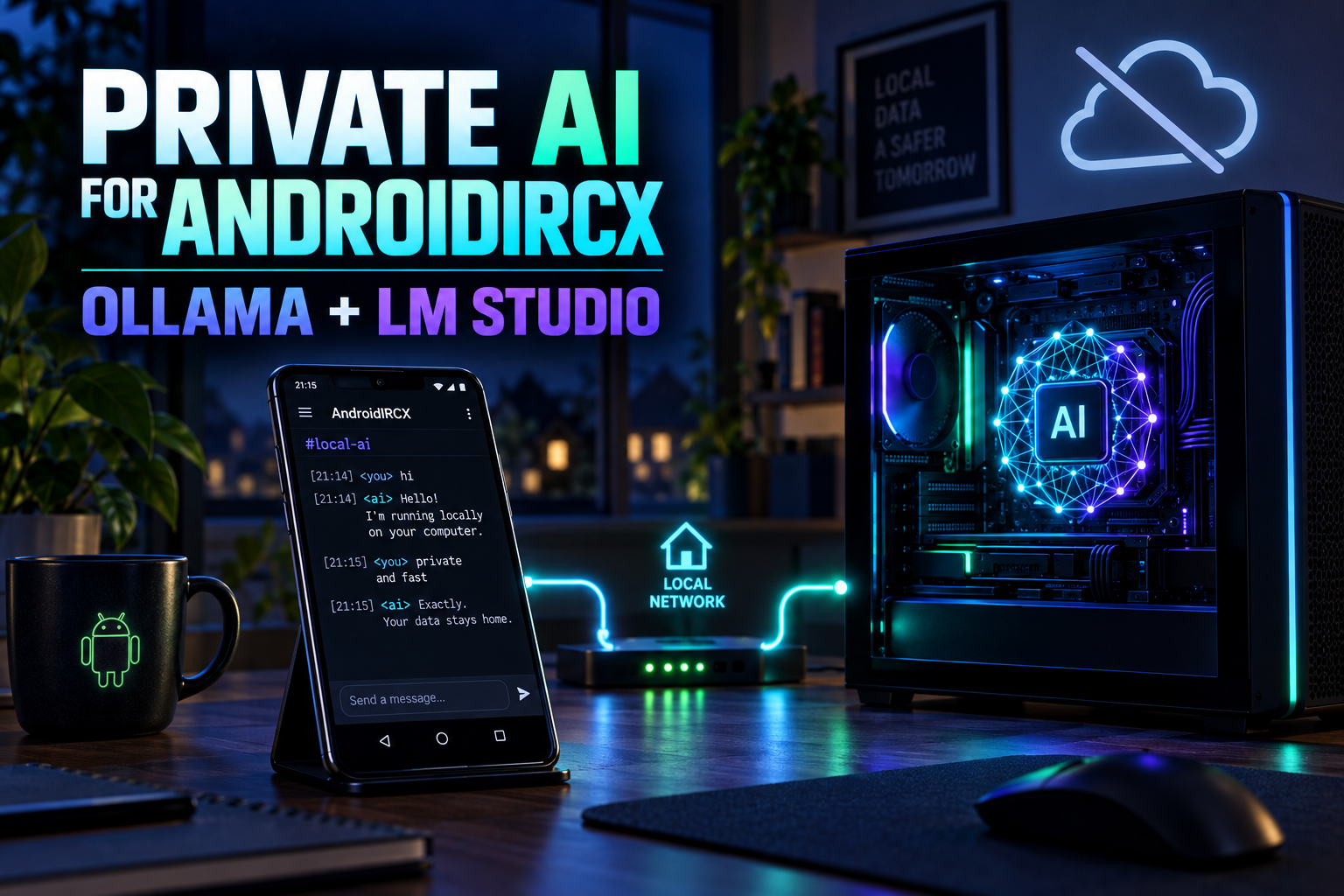
Run Private AI for AndroidIRCX with Ollama or LM Studio

Connect AndroidIRCX to an AI model running on your own computer for private summaries, scripts and assistant features without a cloud API key.
Run Private AI for AndroidIRCX with Ollama or LM Studio
AndroidIRCX can use an AI model running on your own computer. Your phone connects to it across your local network, so IRC context does not need to be sent to a cloud provider and no developer API key is required.
This setup is ideal for users who value privacy, already run local models or want to experiment without provider usage charges.
AndroidIRCX documents local providers in its AI Wiki guide.
How the connection works
Ollama and LM Studio can expose an OpenAI-compatible HTTP API. AndroidIRCX treats that address as an AI provider:
Android phone -> trusted Wi-Fi -> your computer -> local model
The model runs on the computer, not the phone. The phone and computer must be able to reach each other on the same network.
For Ollama, an example base address is:
http://192.168.1.10:11434/v1
Replace the IP with the computer's real local-network address. 127.0.0.1 on the phone means the phone itself, not your computer.
Prepare the computer
Ollama
Install Ollama from its official site, download a model suitable for your hardware and confirm it answers locally before involving the phone.
Ollama must listen on an address reachable from the LAN, not only its computer's loopback interface. Keep the operating-system firewall limited to your trusted local network and the required port.
LM Studio
Install a model, open LM Studio's local-server section and start its OpenAI-compatible server. Enable local-network serving only when needed and note the displayed port.
Models vary greatly in memory use, speed, context length and tool support. Start with a smaller instruction model that responds reliably on your hardware before trying a larger one.
Find the computer's local address
Your computer normally has an address such as 192.168.1.10 or 10.0.0.25. Use the address on the same network as the phone.
Avoid exposing the model server through router port forwarding. Local model endpoints often have weak or no authentication because they are designed for a trusted workstation. They should not be placed directly on the public internet.
Add the provider in AndroidIRCX
Open Settings > AI > AI Providers > Add.
- Choose an OpenAI-compatible or local-provider preset.
- Enter the computer's base URL.
- Leave the API key empty if the local server does not require one.
- Load the models exposed by the server.
- Select a model and save.
- Tap Test on the provider entry.
AndroidIRCX treats a local provider differently from a cloud provider: it does not request cloud-provider consent because the request stays on your network, and an API key is optional.
Per-channel controls still matter as a good privacy boundary. Only enable AI for channels whose text you genuinely intend to process.
Test with a harmless prompt
Start in the in-app assistant with a question that contains no private IRC data:
Explain the difference between IRC TLS and end-to-end encryption in three sentences.
Then try a script call:
const answer = await api.ai.ask('Explain IRC topic locks briefly.', {
  maxTokens: 150,
});

if (answer) api.echo(null, answer);
Only after this works should you test channel summaries or translation.
Local AI features available in AndroidIRCX
A local model can power the same core features as a cloud model:
api.ai.ask()andapi.ai.chat()in scripts/aiand/summarizeexamples- translation and reply suggestions
- AI-assisted script creation and editing
- the in-app assistant
Tool calling depends on the model. Some local models answer text well but do not implement the tool-calling format required for the assistant to inspect IRC state or perform approved actions. Script generation and simple api.ai.* calls can still work without tool support.
Performance expectations
Local does not automatically mean instant. Speed depends on model size, CPU/GPU, available memory, quantization and wireless-network quality.
For IRC tasks, a compact model is often enough. Summarization, translation, classification and short drafts rarely need the largest available model. Smaller models also reduce the delay before the first token appears.
AndroidIRCX caps prompts and responses and limits script request frequency. These limits still apply with a local server because they also protect the client from loops and excessive work.
Troubleshooting
AndroidIRCX cannot reach the server
- Confirm both devices are on the same network.
- Use the computer's LAN address, not
localhost. - Check that Ollama or LM Studio listens beyond loopback.
- Allow the port through the computer firewall for the private network only.
- Disable guest Wi-Fi or access-point isolation, which can prevent devices from seeing one another.
Models do not appear
- Confirm a model is installed and visible in the local server.
- Check that the base URL includes the correct port and OpenAI-compatible path.
- Test the endpoint locally on the computer first.
Text works but assistant tools do not
The selected model may lack compatible tool calling. Choose a tool-capable model or use the provider for scripts, summaries and generation rather than agent actions.
Responses are slow or incomplete
Use a smaller model, reduce the requested token limit, shorten the supplied history and check whether the computer is swapping memory.
Privacy boundaries to remember
Local AI removes a cloud provider from the path, but it is not magic anonymity:
- The computer running the model receives the prompt.
- Other software on that computer may log requests.
- Anyone who can reach an unsecured model port may be able to use it.
- AndroidIRCX conversations and memories remain on the phone, but selected context is sent to the configured model for each answer.
Keep the model endpoint on a trusted network, close it when unused and inspect the local software's own logging settings.
Local AI is one of the best matches for IRC: open tools, user-controlled infrastructure and no requirement to move a community conversation through another company's service.
Related links
Share this post
Found this helpful? Share it with others!