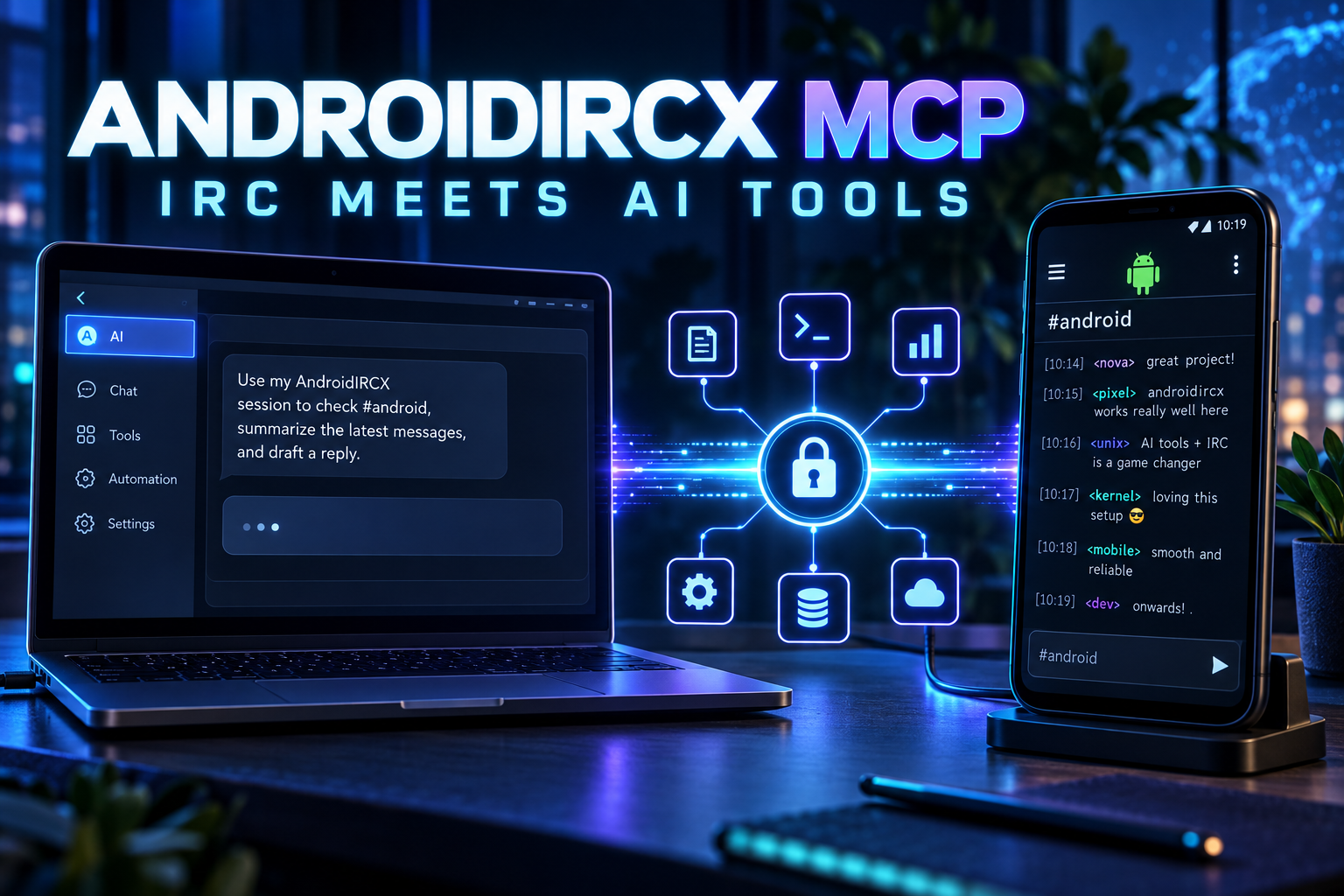
AndroidIRCX MCP: Connect Your IRC Session to AI Tools

Use AndroidIRCX as an MCP client or server to connect live IRC channels, users and history to AI assistants while keeping actions and network exposure under your control.
AndroidIRCX MCP: Connect Your IRC Session to AI Tools
AndroidIRCX can do something unusual for a mobile IRC client: it can connect your live IRC session to AI tools through the Model Context Protocol, better known as MCP.
MCP is a common protocol that lets an AI assistant discover and use tools supplied by another application. AndroidIRCX supports it in both directions. The app can consume tools from an MCP server, and it can become an MCP server that exposes selected IRC capabilities to an assistant on your computer.
This is optional. You do not need MCP for AI-powered scripts, script generation or the in-app assistant.
Full reference: AndroidIRCX MCP Wiki
Two directions, two different jobs
AndroidIRCX as an MCP client
Your phone connects to an HTTP MCP server and gives its tools to the in-app assistant. That server might provide access to your notes, documentation, a search index, tickets or another service you operate.
This makes combined questions possible. The assistant can compare something said in #dev with information stored in an external tool during the same conversation.
Open Settings > AI > Connect to MCP servers, add the server name and URL, and add a token only if that server requires one. AndroidIRCX asks the endpoint for its tool list and prefixes remote names as mcp__server__tool, preventing a remote tool from impersonating a built-in command.
Remote tools require confirmation before they run. AndroidIRCX can skip that confirmation for a tool marked read-only only when you have explicitly marked the whole server as trusted. The read-only label comes from the server itself, so an unknown server should not receive that trust automatically.
If one endpoint is offline, it is skipped. It does not break the assistant or other connected servers.
AndroidIRCX as an MCP server
In the other direction, an AI client on your computer connects to your phone and uses your real IRC session.
Examples include:
- asking what happened across your channels today
- searching locally stored IRC history from a desktop keyboard
- checking users and channel state
- drafting or, when permitted, sending a message
- joining or leaving through the connection already running on the phone
Open Settings > AI > Let other agents use this app. When the server starts, AndroidIRCX displays the complete Streamable HTTP URL and a newly generated bearer token.
The external client needs both. Treat the token like a password.
Read-only is the safe default
The Allow actions switch is off by default. While it is off, tools that send, join or leave are not merely blocked; they are not advertised to the connecting assistant at all.
This is stricter than the in-app assistant. On the phone you are present to approve a proposed action. A remote desktop agent may run while you are looking elsewhere, so AndroidIRCX starts with observation only.
Choose who can reach the server
AndroidIRCX offers three bind modes:
| Mode | Meaning | Typical use |
|---|---|---|
| Only this phone | Listens on 127.0.0.1 |
A client running in Termux on the same phone |
| My network | Listens on the phone's current local-network address | A computer on the same trusted Wi-Fi |
| Every connection | Listens on 0.0.0.0 |
Advanced setups using another interface |
Only this phone is the default and safest choice. My network is normally the right option for a desktop computer at home. Every connection exposes the listener on every available interface, including networks you may not trust, and should be disabled when it is not needed.
The app locks the bind choice while the server is running, so the active listener always matches what the screen shows.
A practical desktop setup
- Connect the phone and computer to the same trusted Wi-Fi.
- In AndroidIRCX, choose My network.
- Leave Allow actions off for the first test.
- Start the MCP server.
- Copy the displayed URL and token.
- In your desktop MCP client, add a Streamable HTTP server.
- Configure the displayed token as a bearer token.
- Confirm that read-only tools for channels, users and history appear.
- Ask a harmless question such as: “Which IRC channels am I in?”
Only enable actions after you understand how your desktop client requests and executes tools.
HTTP rather than stdio
AndroidIRCX supports Streamable HTTP MCP servers, not stdio servers launched as local programs. Typical stdio servers expect tools such as Node.js or Python and an operating system that permits an app to start downloaded executables. A normal Android application cannot provide that environment safely.
A server running in Termux still works. Run its HTTP transport in Termux and connect AndroidIRCX to http://127.0.0.1:<port>.
Anthropic-hosted MCP
Claude providers can also be configured with MCP endpoints that Anthropic contacts directly. In that arrangement the phone is not the MCP client, so it uses no phone battery and can work while AndroidIRCX is closed. The endpoint must be reachable from the internet.
Use AndroidIRCX's own MCP client for local-network services. Use provider-hosted MCP only when you intentionally want the provider to contact a public endpoint.
Important security history
AndroidIRCX v1.9.56 generated and displayed an MCP server token, but the server did not verify it. On the default loopback bind the impact was limited to the phone. On local-network or all-interface binds, anything that could reach the port could access the exposed tools.
The v1.10.0 implementation verifies the bearer token on every request and compares it in constant time. If you used the older server outside loopback, assume it was open for that period and update before exposing it again.
MCP safety checklist
- Keep actions disabled unless remote control is genuinely needed.
- Prefer Only this phone or My network.
- Do not share screenshots containing the URL and token.
- Stop the server when the task is finished.
- Trust an external MCP server only if you control or understand it.
- Remember that a server's “read-only” annotation is its own claim.
- Use current AndroidIRCX builds with token verification.
- Never expose the listener through router port forwarding without an additional secure access layer.
MCP turns AndroidIRCX into a bridge between classic IRC and modern assistant workflows while keeping the important choices visible: which direction data flows, which tools exist, whether actions are allowed and which network can reach the phone.
Related links
Share this post
Found this helpful? Share it with others!